

MSG to EML Converter with Batch Mode - Free Download

MSGtoEML with Batch Processing in E-Mail Converter Professional
MSGtoEML is the central use case when Outlook messages need to be extracted from the MSG format and saved as EML files. E-Mail Converter Professional runs locally on the Windows PC and is designed for users who want to carry out individual messages, complete folders, or recurring conversions in a controlled way.
With MSGtoEML, a saved Outlook file with the .MSG extension is converted into an EML file. This target format can be read by various email programs. This makes it easier to back up older Outlook messages, share them, or import them into other email programs. The reverse path from EML to MSG is also included if existing EML files later need to be transferred back into an Outlook-like archive.
The converted email files can be used with the following email clients, depending on the format:
- Microsoft Outlook Express versions (*) and Windows (Live) Mail (*) for EML files
- Classic Microsoft Outlook (*) versions 2000 through 2024 for MSG files
- New Outlook for Windows and Outlook on the web, depending on the Microsoft account, subscription, and feature set for EML and MSG files
Screenshot of E-Mail Converter Professional
MSGtoEML with the Converter
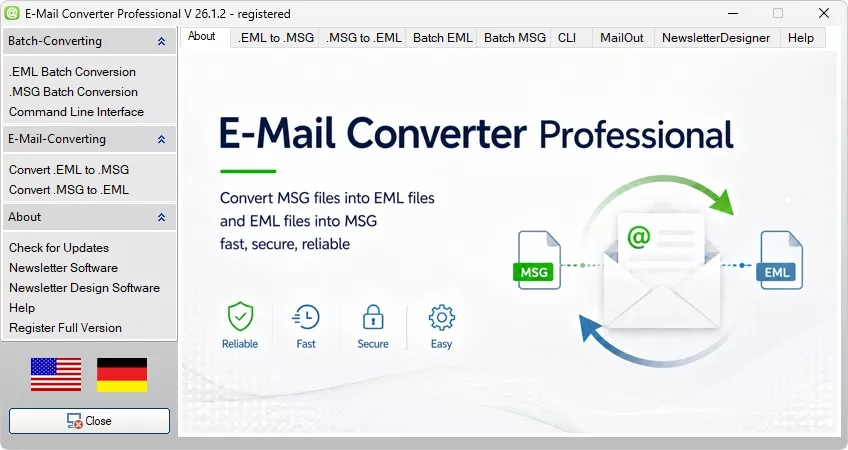
Figure: MSGtoEML conversion
E-Mail Converter Professional is available in several editions. The freeware version for MSGtoEML processes individual files. The full version is designed for folders, subfolders, and larger data volumes. The Enterprise version adds command-line execution so that MSGtoEML can also be started from external workflows, scripts, or scheduled Windows tasks.
The workflow remains clear: First, select the direction, MSGtoEML or EML to MSG. Then define the source and destination folders. After starting, the program writes the new file in the desired format. The generated message can then be opened and checked in the appropriate email program.
For larger mailboxes, batch mode is essential. Instead of opening each MSG file individually, E-Mail Converter Professional processes multiple files one after another. For archive collections, project folders, or old backups, this saves many manual steps. In the Enterprise version, MSGtoEML can also be prepared via CMD line, allowing recurring conversions to be cleanly integrated into existing workflows.
Features of the MSG to EML Converter
Overview of the MSG to EML converter features:
- MSGtoEML for Outlook messages in MSG format
- Output of individual MSG files as EML files
- Reverse direction from EML to MSG
- Professional email processing with MailBee.NET for reliable conversion
- Support for Microsoft Outlook 2000 through 2024
- 32-bit and 64-bit environments
- Batch processing for multiple MSG files
- Bulk processing for larger folder collections
- Convert folders with subfolders all at once
- CMD-line call in the Enterprise version
- Integration into external programs in the Enterprise version
- Batch EMLtoMSG for larger EML collections
- Batch MSGtoEML for recurring conversions
- Update client in the program
- Local processing without online upload
- Suitable for archiving, migration, and data backup
Program Workflow for MSGtoEML
The MSG to EML converter is designed for a direct workflow. Select the source, define the destination, start the conversion, and check the result. For MSGtoEML, the existing MSG file does not have to be saved again in Outlook. The software reads the message file and creates an EML file from it for further use.The essential email components are taken into account during output. These include message text, subject, sender, recipients, date, attachments, and existing formatting. This ensures that the message content remains intact and coherent after conversion.
MSGtoEML and EML to MSG Explained Clearly
MSGtoEML refers to converting an Outlook message into an EML file. MSG is strongly associated with Outlook. EML, on the other hand, is read by several email programs as an individual message file. That is exactly why this change is useful for archiving, backup, and moving to another program.The EML to MSG direction works the other way around. Existing EML files are written to MSG format. This path is needed when older messages have to be returned to an Outlook-related storage structure, an MSG archive, or a corresponding working collection.
Format conversion is not just about a new file extension. An email contains more than visible text. Attachments, headers, HTML content, timestamps, and recipient information are also part of the message. E-Mail Converter Professional processes this data locally and writes it to the target format.
MSGtoEML
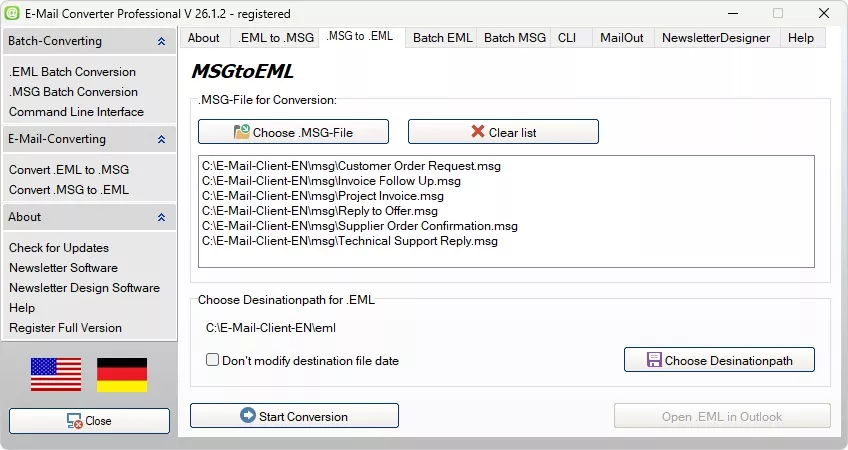
Product image: MSGtoEML
MSGtoEML is useful when Outlook messages need to remain readable outside Outlook. An MSG file is transferred into an EML file so that it can be opened or saved in other email programs.
Many users use MSGtoEML for old archives, individual project emails, previous customer cases, or saved messages from an old computer. The EML files can then be stored in folders, copied, or checked in another email client.
EML to MSG
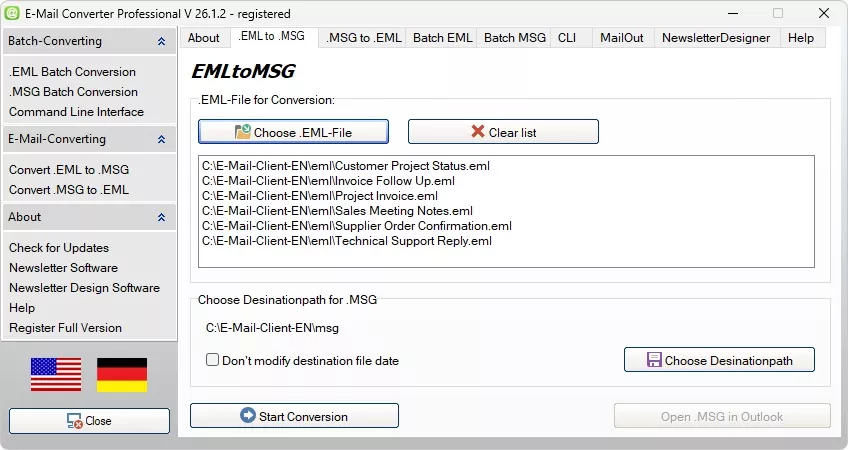
Product image: EML to MSG
EML to MSG is the reverse direction. Existing EML files are saved as MSG files. This direction is used when messages are needed again in an Outlook-related working collection.
For larger EML collections, batch processing can be used. This writes multiple files one after another without each message having to be opened and saved again individually.
MSGtoEML for Archiving and System Changes
MSG and EML both store individual messages, but they differ in their technical environment. MSG belongs to the Outlook environment. EML can be read by many email programs and is therefore well suited for open storage and long-term backups.During a system change, mixed collections often occur. Some messages are available as MSG files, while others are available as EML files. The MSG to EML converter covers both directions. For the main focus, MSG to EML, Outlook files are written as EML files. For the reverse path, EML files are output as MSG files.
Convert MSGtoEML
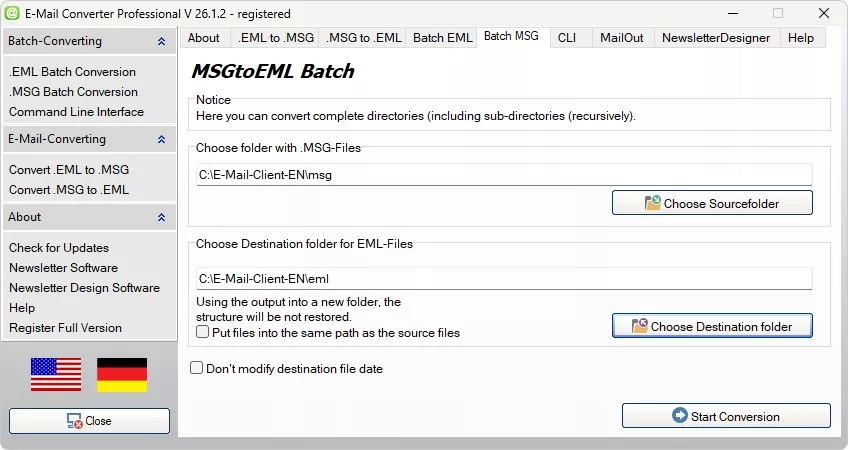
Product image: MSGtoEML conversion in batch mode
Converting MSGtoEML means outputting an Outlook message as an EML file. This step is useful when saved MSG files need to be read in Thunderbird, Windows Mail, Apple Mail, or another client.
The MSG to EML converter handles the technical output for this purpose. Depending on the version, individual files, multiple files, or complete folder structures can be processed. This is especially useful for old backups and large message collections.
Convert EML to MSG
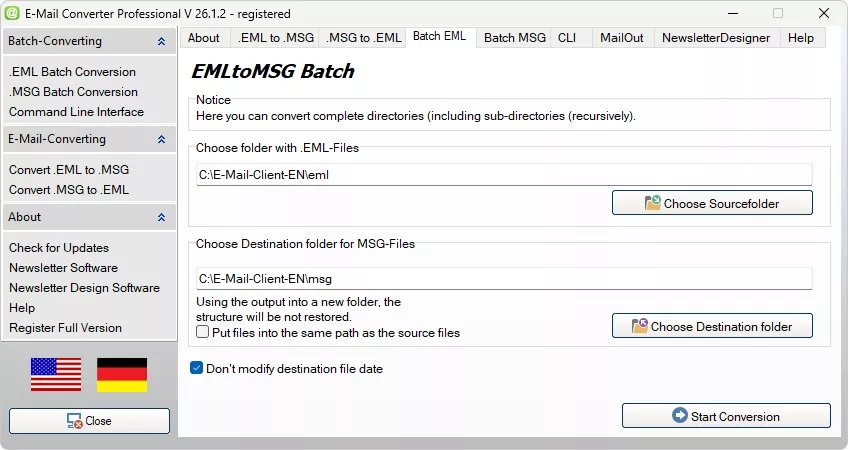
Product image: EML to MSG conversion in batch mode
Converting EML to MSG means that an existing EML file is saved as an MSG file. This direction is used when messages need to be returned to an Outlook-related structure.
When switching between MSGtoEML and EML to MSG, preserving the mail data is important. Attachments, message text, recipients, sender, and timestamps should remain complete and consistent after output. The conversion workflow is designed precisely for this purpose.
One program for both directions reduces the effort involved with mixed archives. MSG becomes EML, and EML becomes MSG. This makes it possible to bring old message collections into the required format without switching programs.
This combination is useful in migration projects. Some emails need to be backed up as EML, while others later need to be available again as MSG. E-Mail Converter Professional keeps this workflow together within one interface.
What Does an MSG to EML Converter Do?
An MSG to EML converter reads Outlook MSG files and writes EML files from them. An MSG file contains a single email with subject, text, attachments, recipient details, headers, and other metadata. An EML file also stores a single message, but it can be opened in several email programs.The advantage lies in the clear workflow. Messages do not have to be opened individually in Outlook and saved by hand. The software performs the conversion according to fixed settings. This keeps the process traceable even when working with multiple files.
Email Converter with Command Line Interface (CLI)
Our Command Line Interface Email Converter can be controlled via the command line. A Command Line Interface, or CLI, is a text-based input method used to control the converter remotely. Commands, paths, and options are passed directly as text, for example via the Windows Command Prompt (DOS), batch files, or scripts.The advantage: recurring tasks can be executed without manual operation. Source, target folder, and conversion direction are passed as parameters.
CLI Email Converter
The CLI Email Converter converts email files using fixed commands. With MSGtoEML, MSG files can be converted to EML files via the command line.Command Line Interface Email Converter
This Command Line Interface Email Converter is also useful when MSG to EML conversion needs to be performed regularly or with multiple files. Source folders, target folders, and other settings are defined in the command or script.MSGtoEML with Command Line Interface
The MSGtoEML Command Line Interface is used for automated conversion of Outlook MSG files to EML files. It is suitable for scheduled processes, scripts, archiving, migration, and data backup.Command Line Parameter for MSG to EML Conversion
The MSG to EML command line parameter define which MSG files are processed and where the generated EML files are saved. Parameters include source path, target path, and conversion direction.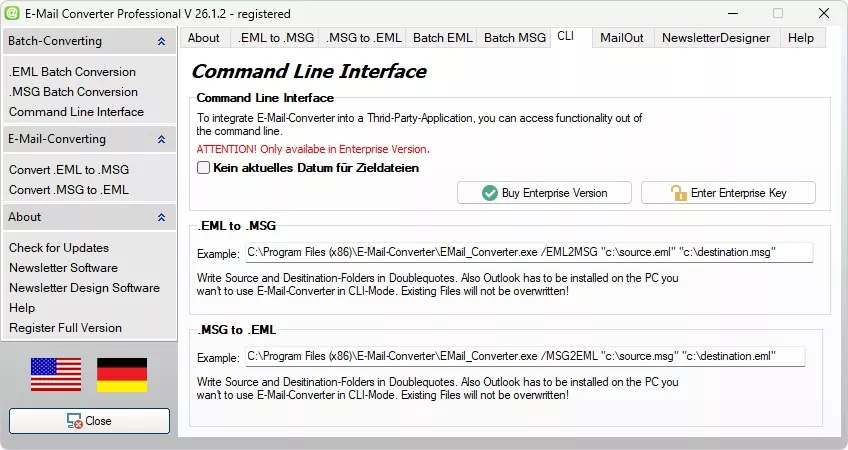
MSG to EML Converter showing the Command Line Interface (CLI)
For administrators, CMD-line operation is relevant. Source paths, destination paths, and recurring tasks can be stored in scripts this way. This is suitable for server moves, project archives, backup runs, and regular exports.
Which MSG to EML Converter Fits Your Project?
1. Check source filesBefore use, you should check which Outlook versions the MSG files come from. Also test your own sample emails with attachments, HTML text, long subject lines, and multiple recipients.
2. Estimate the data volume
For a few files, individual processing is sufficient. For archive folders, former mailboxes, or project collections, a batch workflow makes sense. This allows the program to process multiple files one after another.
3. Define the target program
Before conversion, it should be clear which email program will be used to read the EML files later. This makes it easier to check whether display, attachments, and headers appear correctly in the target program.
4. Plan automation
If the MSG to EML conversion is to be performed regularly, the command line is an important point. Fixed source and destination folders can be prepared in scripts this way. This reduces manual input for recurring tasks.
5. Pay attention to the folder structure
In large archives, MSG files are usually distributed across several subfolders. The full version can handle such structures and process entire directories. This makes the storage structure easier to trace after conversion.
6. Choose the correct license
The freeware version is intended for individual files. The full version is designed for folders and larger volumes. The Enterprise version is the right choice when CMD-line use, third-party program control, or fixed workflows are required.
7. Process confidential data locally
Email archives often contain internal processes, customer data, or older correspondence. Local processing keeps this data on your own PC and avoids uploading it to external services.
Practical Selection Guide for MSG to EML
What to consider:
- The freeware version is sufficient for individual Outlook messages.
- For old folder collections, the full version with batch processing is suitable.
- For scheduled workflows and scripts, the Enterprise version is required.
- For sensitive email archives, local processing should be the main focus.
Typical Use Cases for MSGtoEML
MSG to EML is often used when Outlook messages need to remain readable over the long term. After conversion, individual EML files are available and can be opened in several email programs. This makes the format suitable for archive folders, backup copies, and later research.In a business environment, access to older communication plays an important role. Project histories, customer emails, technical agreements, or internal processes are often retained for years. With MSGtoEML, such messages can be stored in a more open structure.
Private users also benefit from the conversion. Old MSG files from a previous computer can be written to EML files and checked on a new system. Archived Outlook messages can be converted into standard email files with this MSGtoEML tool. The files can be sorted by year, topic, or sender.
For larger collections, the batch workflow saves time. Older Outlook message files can be prepared through MSGtoEML conversion when a different email program requires EML format. The converter processes many files one after another and keeps the output in a defined destination folder. This keeps even a complex archive manageable.
For the long-term retention of Outlook messages, MSG to EML is therefore a practical approach. The emails remain readable, can be copied, and are not permanently tied to a specific Outlook installation.
Why MSGtoEML Makes Sense for Old Outlook Files
Email archives grow over the years. Eventually, a computer is replaced, Outlook is set up again, or another email client is used. In such cases, MSG files can only be used to a limited extent outside Outlook. EML files, on the other hand, can be opened in several programs and backed up more easily.E-Mail Converter Professional helps keep older message collections usable. Companies can prepare stored communication for documentation, project records, and customer histories. Private users back up old mail files in a format that can be opened more easily later.
Technical Advantages of MSGtoEML
When outputting MSG to EML, header data, attachments, and metadata are transferred to the new file. This keeps the origin, content, and context of a message traceable. An organized destination structure then supports further filing.EML files can be read by programs such as Thunderbird, Windows Mail, or Apple Mail. The messages can be opened, forwarded, copied, or moved into new folders. This makes the collection more independent of the original Outlook environment.
MSGtoEML for Email Archiving
Good archiving requires clear files and traceable folders. With MSGtoEML, Outlook messages are output as individual EML files. These files can be sorted by date, sender, project, or topic.For larger archives, processing entire directories is helpful. Backups, system changes, project archives, and long-term storage can be prepared more quickly this way. E-Mail Converter Professional performs this workflow locally and keeps working with email files controlled.